How to Use Ledger with Motion Wallet
Access Movement Network while your recovery phrase and private keys stay secured by your Ledger
Motion supports Ledger-backed accounts, giving you access to Movement Network while your recovery phrase and private keys remain secured by your Ledger. You'll need a Ledger device with its USB cable, the latest Ledger Wallet (formerly Ledger Live) and Ledger OS, the Aptos app installed on your Ledger, and Motion Wallet installed in Chrome. Motion currently requires blind signing for Ledger transactions — the Ledger may show a transaction hash instead of human-readable details, so review every transaction carefully in Motion before approving it on your device.
Prepare Your Ledger
Install the Aptos app and enable blind signing
Connect and unlock your Ledger, then open Ledger Wallet:
- Go to My Ledger.
- Search the App Catalog for Aptos.
- Install or update the Aptos app.
- Open the Aptos app on your Ledger.
Movement uses Aptos Move, so Motion connects through the Ledger Aptos app.
Next, enable blind signing on your Ledger device: open the Aptos app, open Settings, find Blind Signing, and set it to Enabled. Transactions will fail if blind signing is disabled.
Open Motion and Add a Wallet
Start the hardware wallet flow
Keep your Ledger plugged in, unlocked, and running the Aptos app.
- Open Motion Wallet.
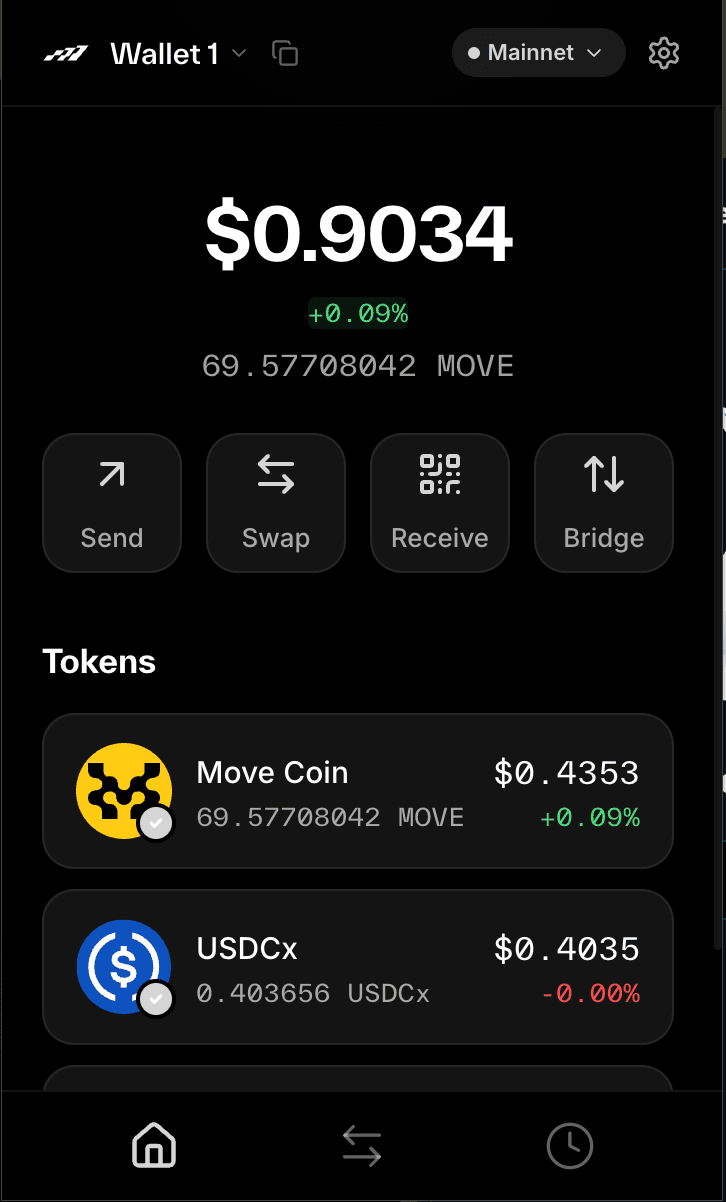
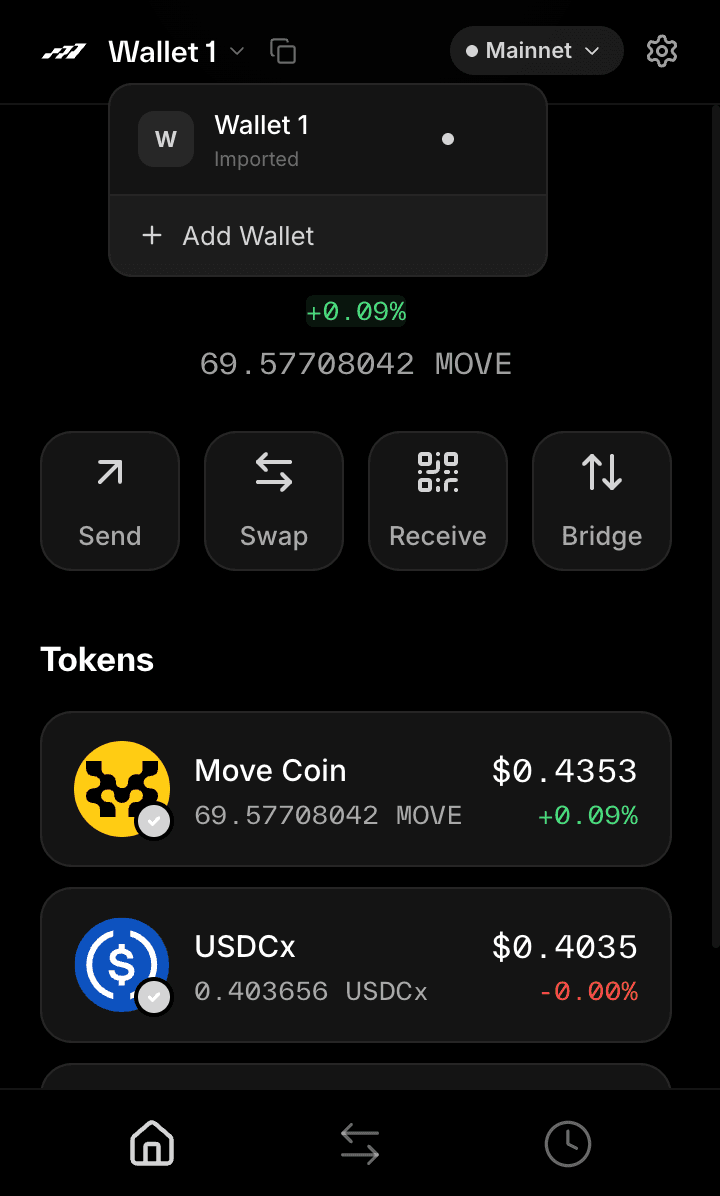
- Tap the wallet dropdown in the upper left corner.
- Select Add Wallet.
Choose Hardware Wallet
Import an existing wallet
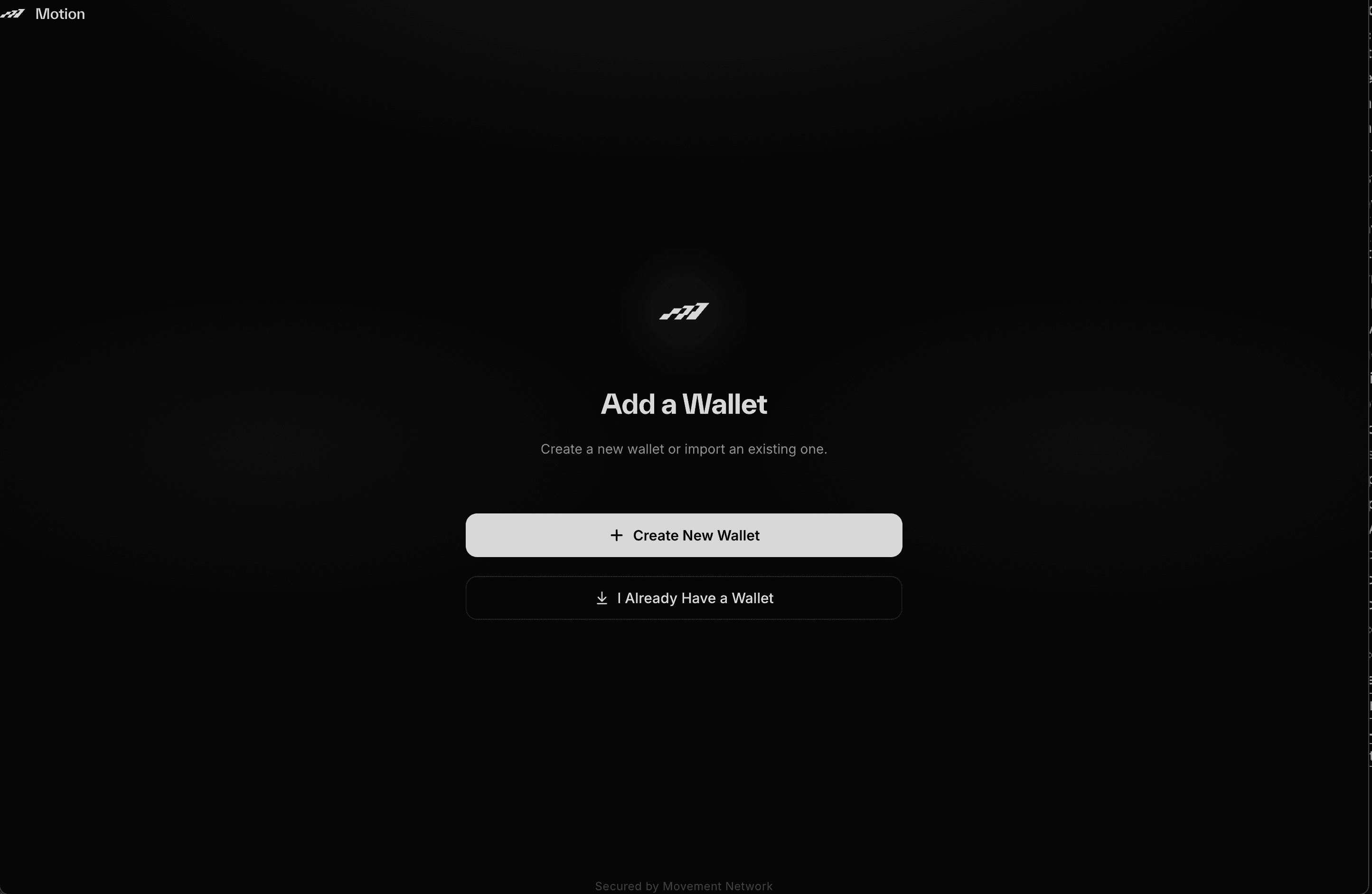
A browser tab will open with "Create New Wallet" or "I Already Have a Wallet".
- Click I Already Have A Wallet.
- Click Hardware Wallet.
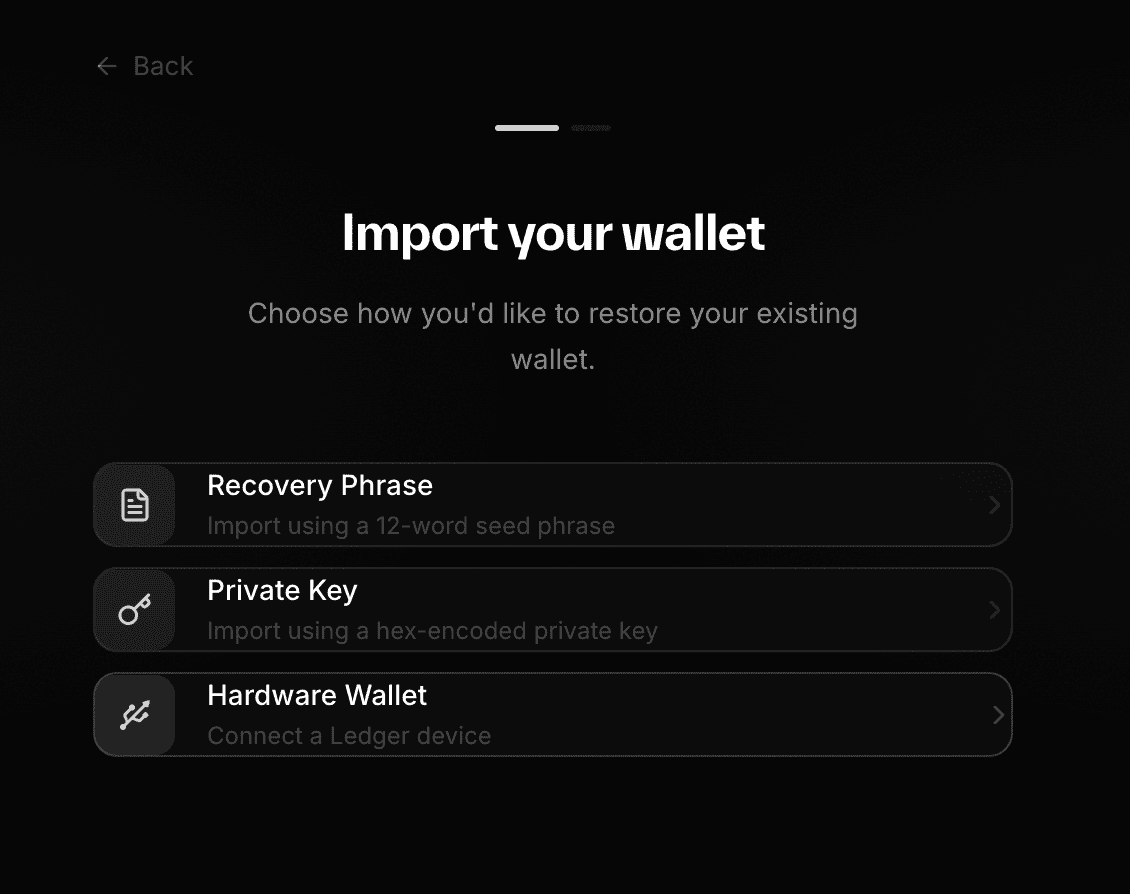
Connect Your Ledger
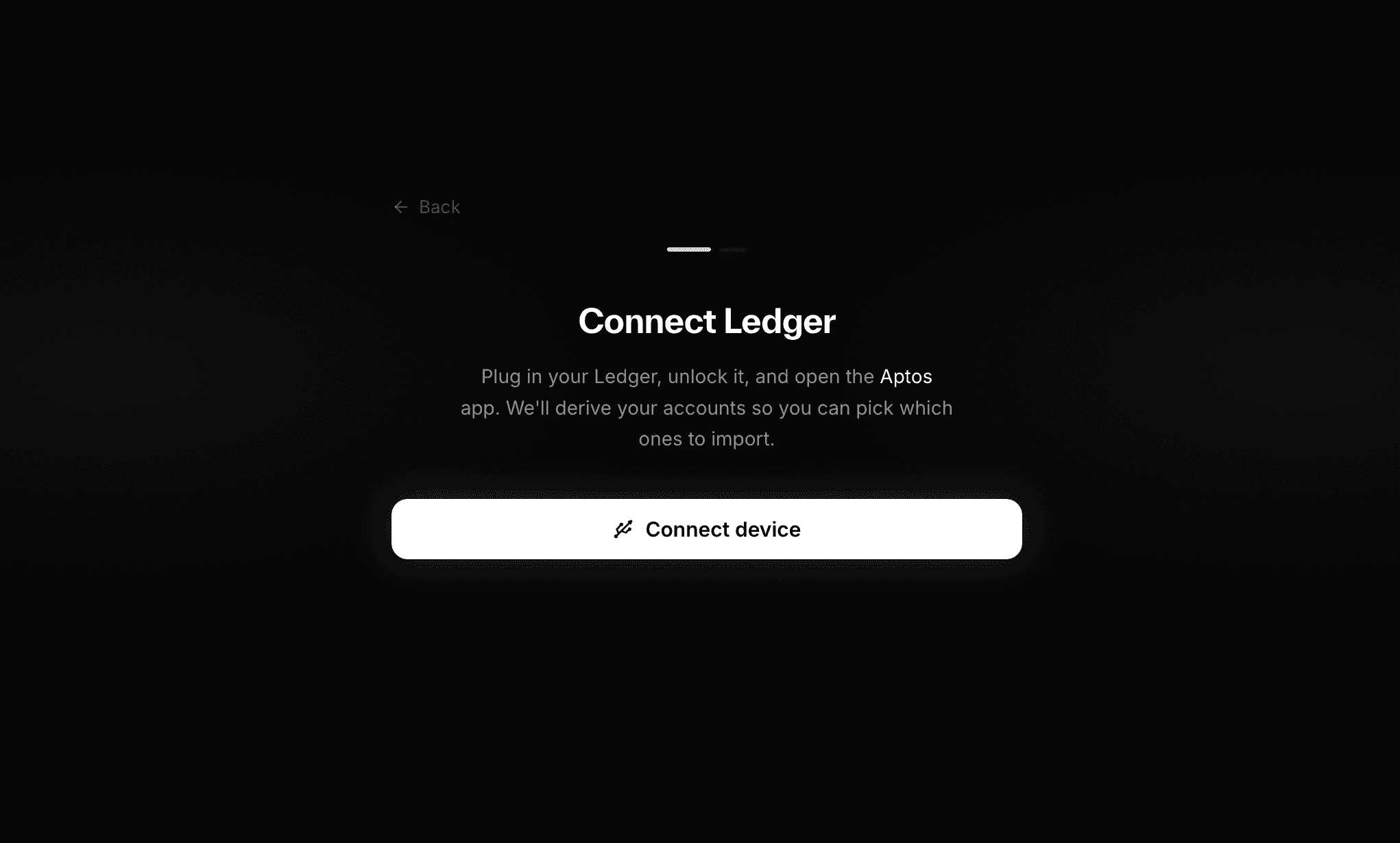
Pair the device in Chrome
Choose Connect Ledger. When Chrome opens the device-selection window, select your Ledger.
If more than one device appears, confirm that you are selecting the Ledger currently connected to your computer.
Import Your Accounts
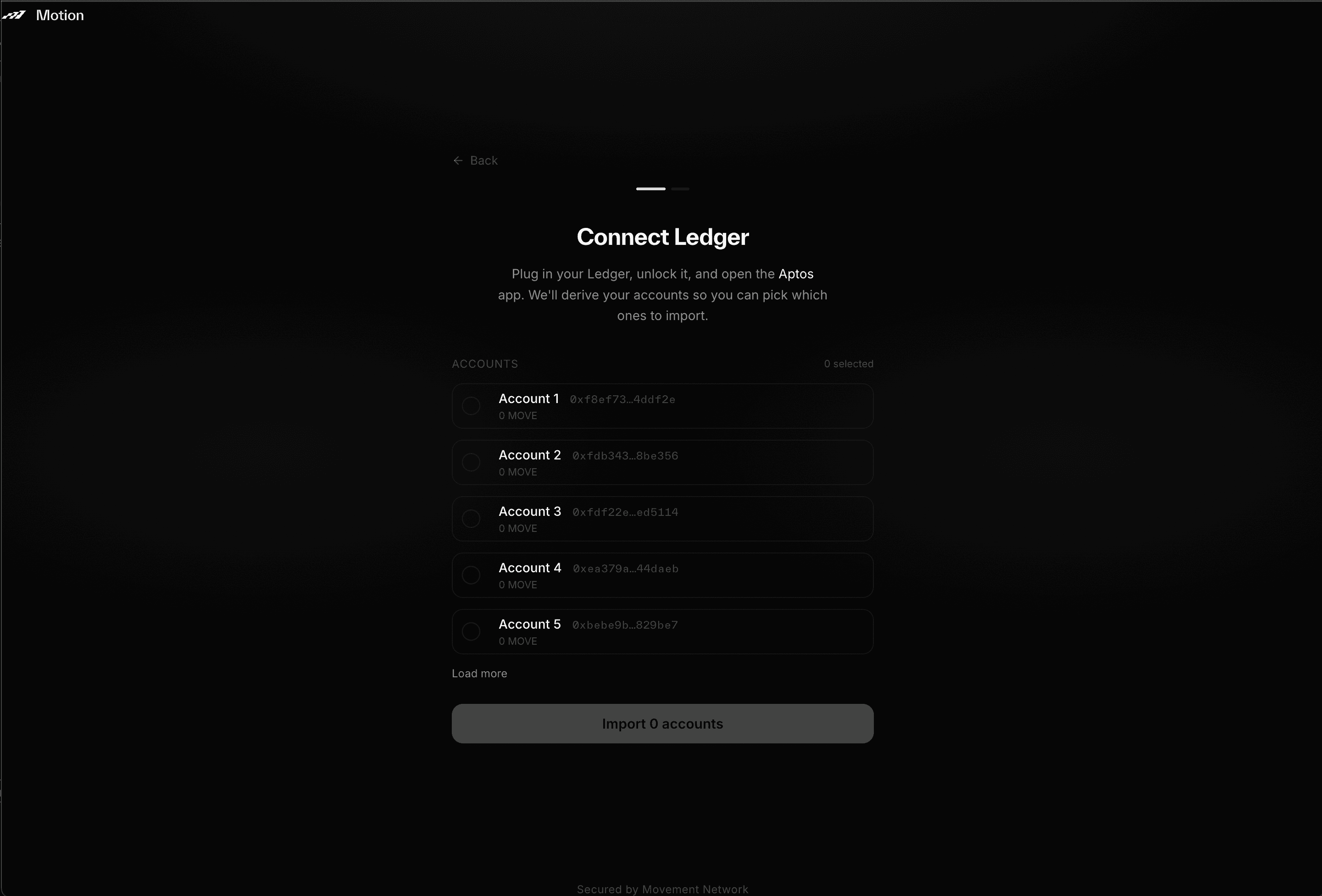
Pick the accounts to bring into Motion
After selecting your desired Ledger account(s), click Import and confirm by entering your Motion wallet password.
Approve a Transaction
Review in Motion, then confirm on your Ledger
Your Ledger must remain plugged in and unlocked, with the Aptos app open, whenever you sign a transaction.
- Start the transaction in Motion or a connected Movement app.
- Review the transaction details shown in Motion.
- Confirm that the action, amount, and destination are correct.
- Continue to your Ledger.
- Review the hash shown on the device and approve the transaction.
Because Motion uses blind signing, your Ledger may show a hash instead of the full transaction details. This is expected. Only approve the hash after reviewing the transaction in Motion and confirming that you initiated it. Your Ledger may take up to a minute to process the confirmation — keep the device connected and the Aptos app open while you wait.
Good to know
Does Motion ever see my Ledger recovery phrase?
Can Motion reveal my Ledger recovery phrase?
Do I need my Ledger connected to sign transactions?
Motion says "Open the Aptos app on your Ledger" — what do I do?
Why does Motion say "No Ledger device found"?
What if I see "Ledger device disconnected"?
Why was my transaction rejected on-chain?
Chrome does not show the device-selection window — what now?
Pro tips
Import More Than One Account
You can select several Ledger accounts during setup. This is useful if you keep different assets or activities separated across addresses.
Keep the Aptos App Open
Returning to the Ledger home screen closes the Aptos app and interrupts the connection. Reopen the app before trying again.
Review Before Touching the Device
The Ledger displays a hash for blind-signed transactions, so the human-readable review in Motion is important. Confirm the amount, destination, network, and action before approving anything.
Stay safe
Do
Install Motion from the official Chrome Web Store listing
Review every transaction in Motion before approving it
Keep your Ledger recovery phrase offline
Verify that you initiated the transaction being shown
Start with a small test transaction when using a new account
Don't
Never type your Ledger recovery phrase into Motion or any website
Don't approve a transaction you did not initiate
Don't continue if the transaction details in Motion look wrong
Never share your Ledger PIN or recovery phrase with support staff
Avoid signing transactions from unfamiliar links or apps